You can cancel a lesson at any time before it starts. Give your student as much notice as possible, and where you can, reschedule instead of cancelling, as it’s more efficient.
How to cancel on the web
- Log in and go to your Lessons tab.
- Click Lesson details next to the lesson.
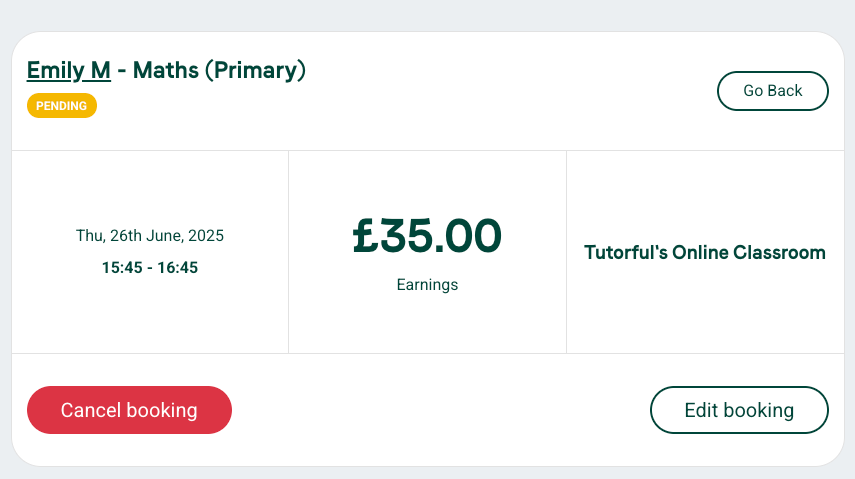
- Click Cancel Booking.
- If you have repeat lessons, choose to cancel just one or all remaining lessons in the series.
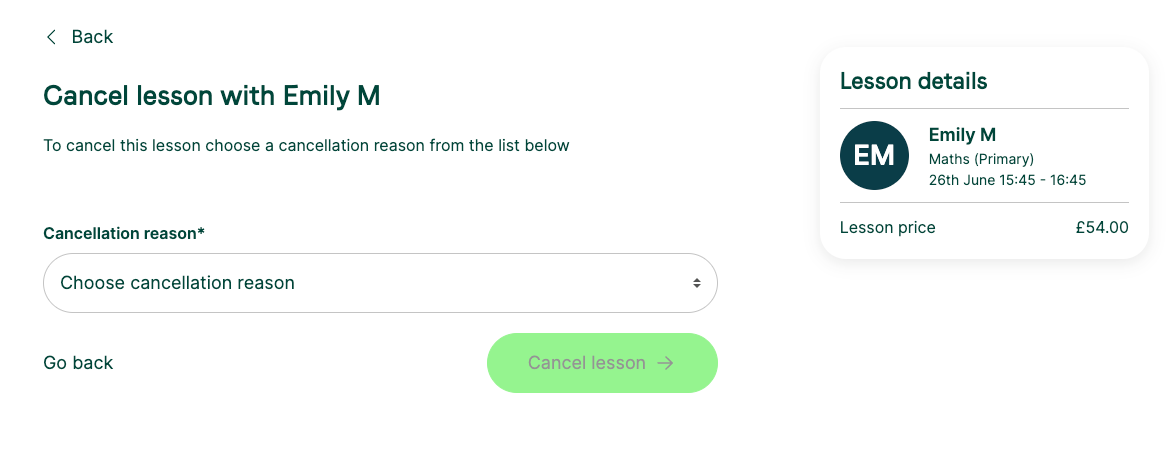
- Select the reason from the dropdown. If it’s scheduling-related, you’ll get a link to reschedule instead.
How to cancel on the app
Tap the lesson, select Cancel lesson at the bottom, then choose a reason.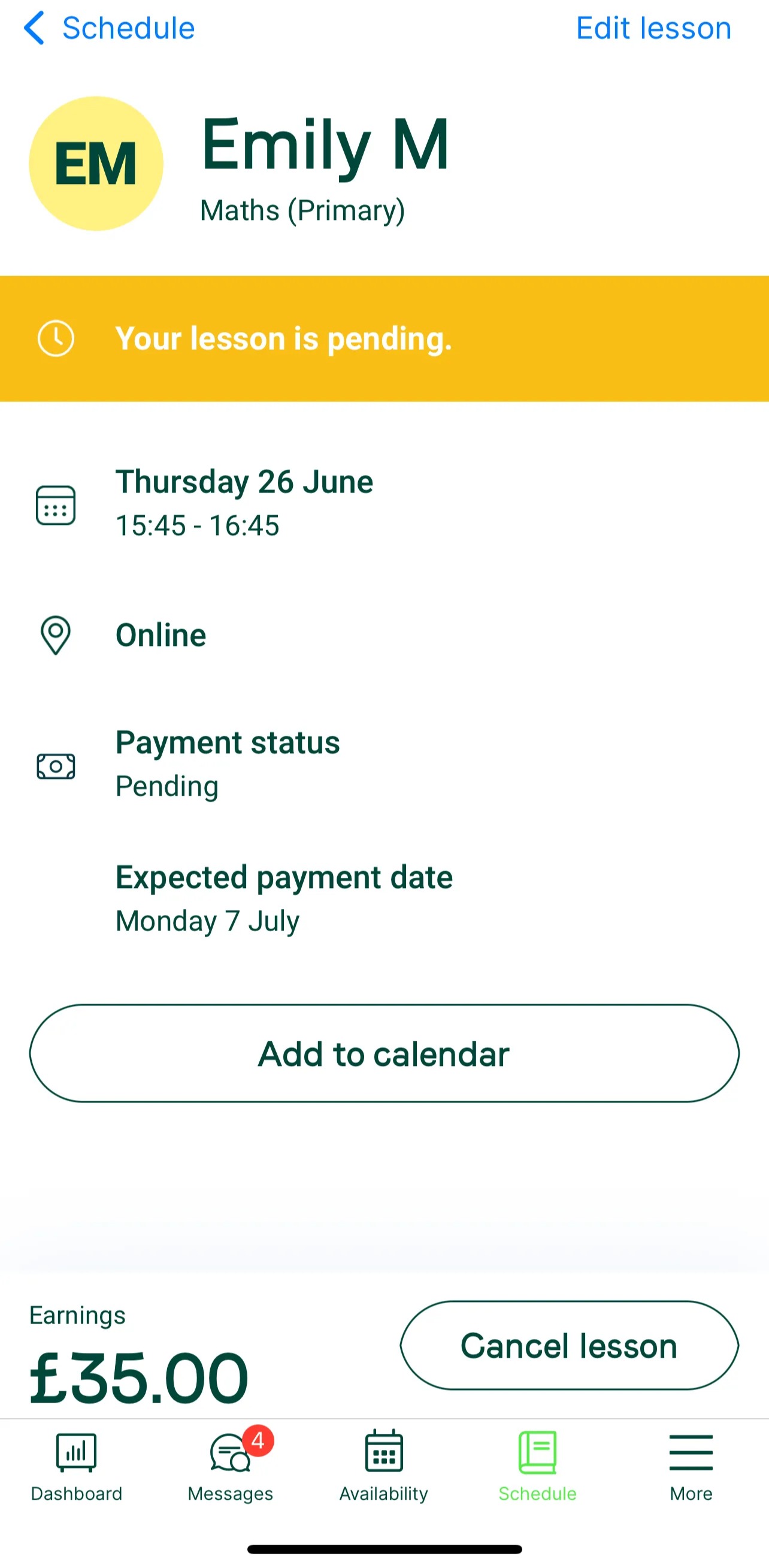
Choosing the right reason matters
- If you (the tutor) need to cancel, always select a tutor-related reason. Choosing a student-related reason could wrongly charge the student.
- We ask that you only enforce a cancellation fee when it’s the student who needs to cancel, not you.
Enforcing a late-cancellation fee
If a student cancels within 24 hours and you want to charge, go to the lesson, select Cancel booking, and choose a student-led reason. You’ll then see the option to enforce a 0%, 50%, or 100% cancellation fee.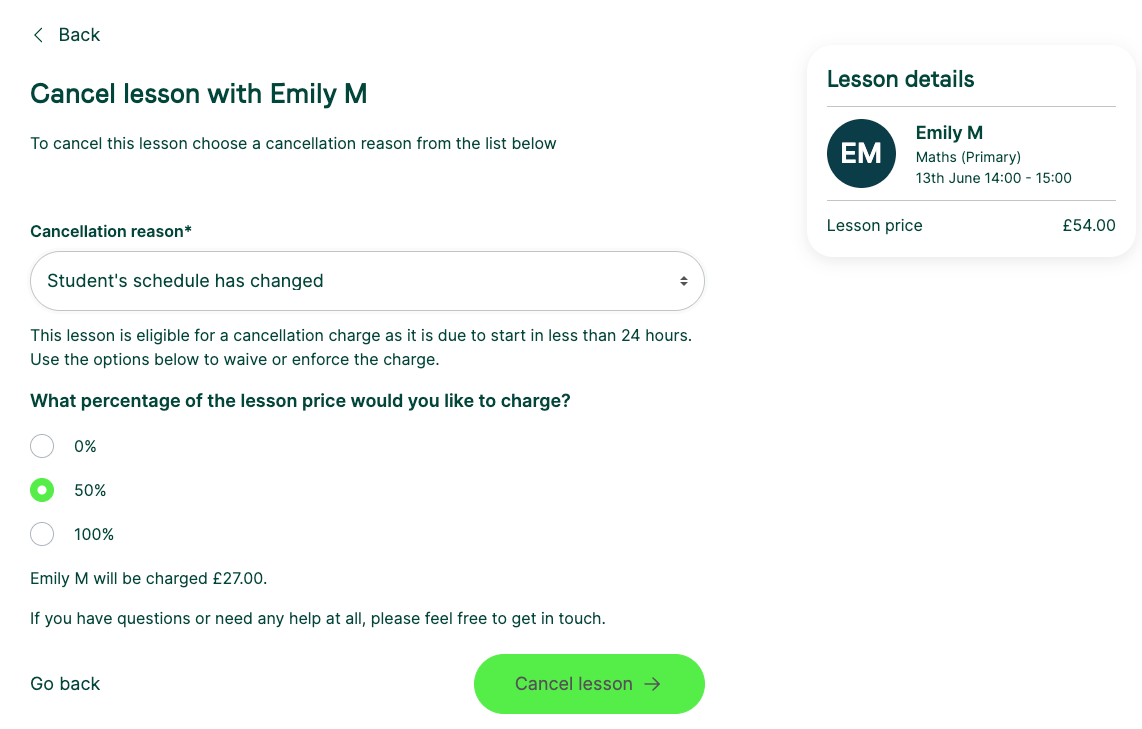
If a student tells you in person they can’t attend the next session
You must still cancel the booking on-site as well as not attending. If you don’t cancel, the student is charged automatically, so action it as soon as possible or ask the student to. Keep a message trail on the platform: if neither party cancels and neither takes responsibility, we may not be able to guarantee full payment to the tutor or a refund to the student.
What to do next
For the full charge rules, timings, and handling fees, see What is your cancellation policy?.
Was this article helpful?
That’s Great!
Thank you for your feedback
Sorry! We couldn't be helpful
Thank you for your feedback
Feedback sent
We appreciate your effort and will try to fix the article