You can archive a student to remove them from your messages, keeping current students separate from previous ones or people you only messaged. You can archive on both the app and the website.
How to archive on the app
- Go to the messages section of the student you want to archive.
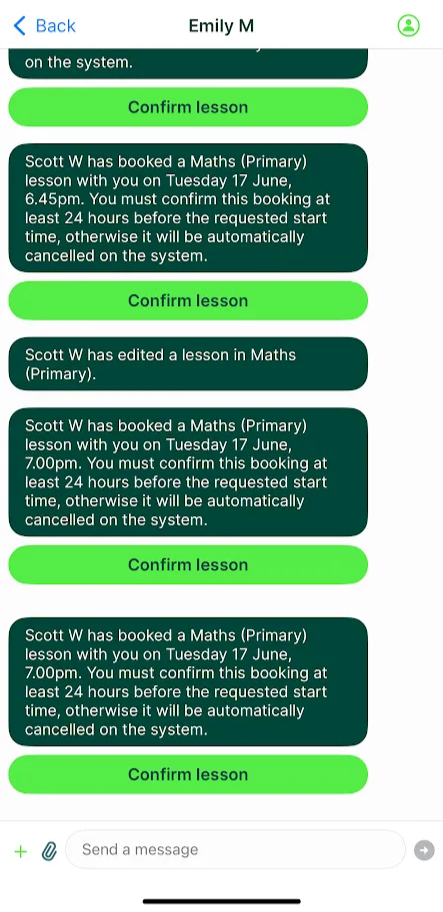
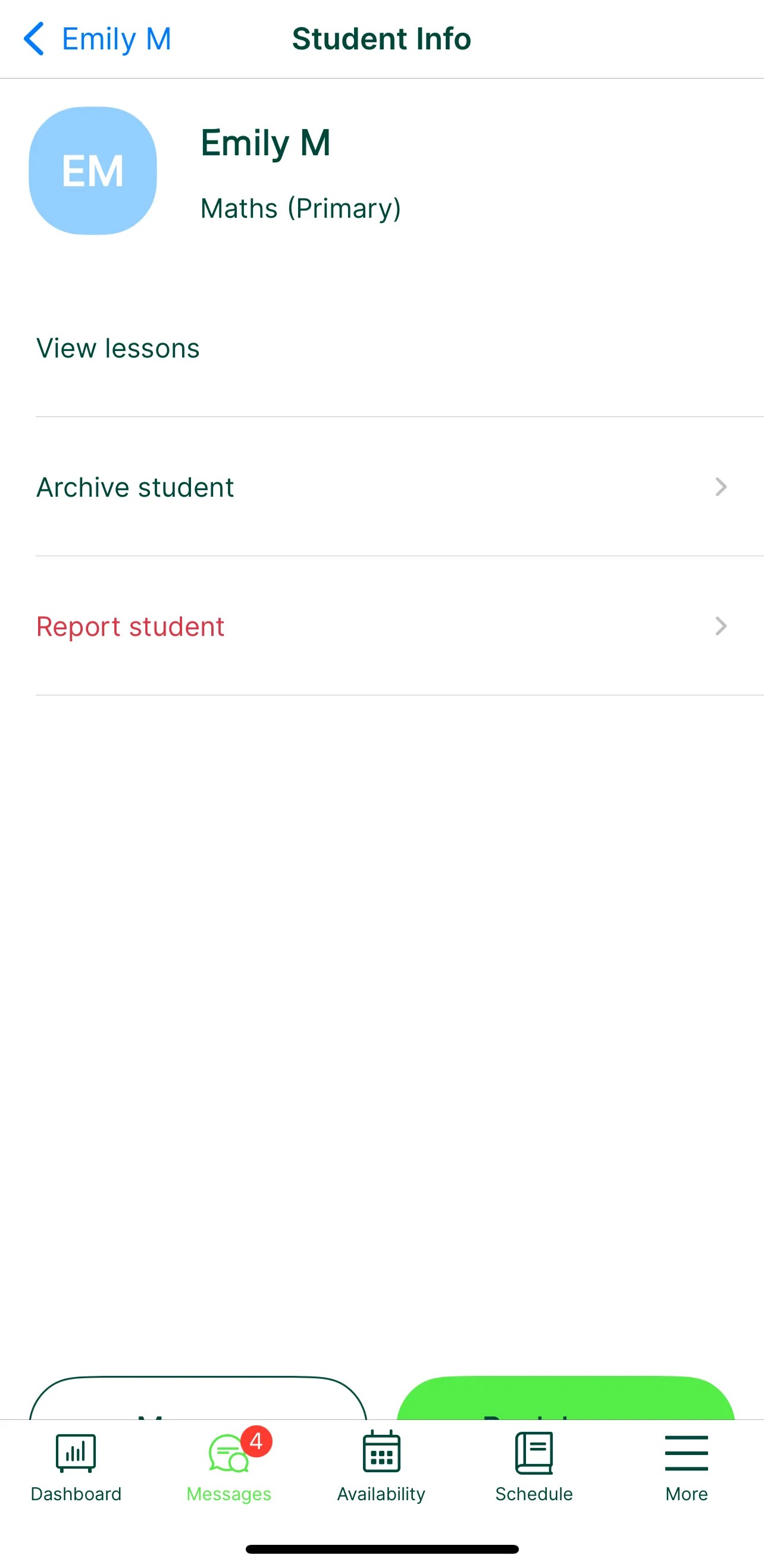
- Select the green plus button in the bottom left, then choose Archive. You can also archive from the student profile icon panel in the top right.
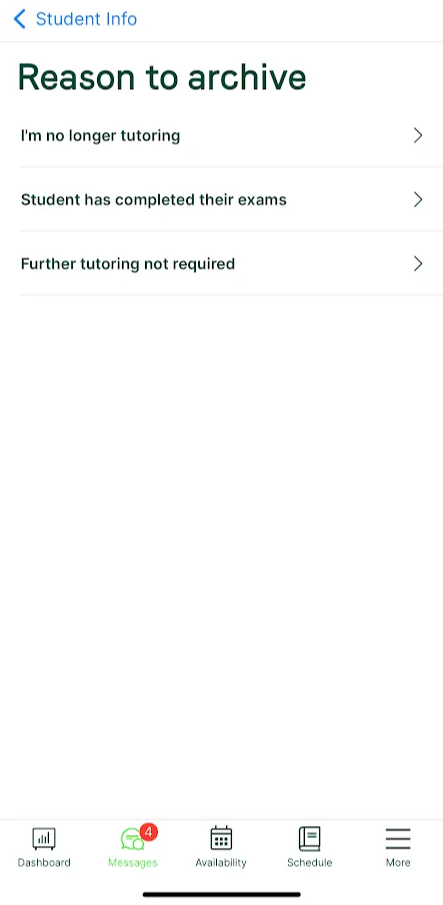
- Select a reason. The first list is for new student enquiries; the second is for students who’ve had at least one confirmed lesson.
- Once archived, we message the student to say you’re no longer available to tutor them, and they’re removed from your messages.
How to archive on the website
- Go to the messages section and select the i symbol on the right.

- Select Archive and choose a reason (the left list for new enquiries, the right for existing students).
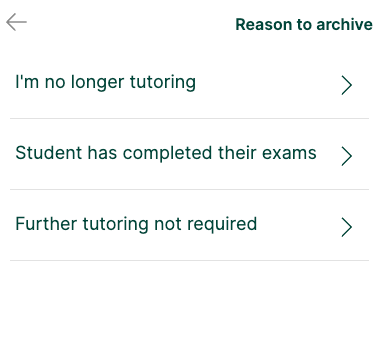
- Confirm with the green Archive button.
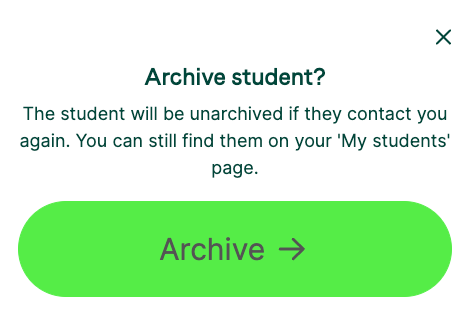
You can also archive when responding to a lesson request: select Reject and archive and choose a reason.
Things to know about archiving
- Archived students still see the message thread, and a new message from them unarchives the relationship.
- If you accidentally archive a student you’ve not taught, or pick the wrong reason, contact our Engagement Team to resolve it.
- If you archive a student you have taught, you can still reach them via completed lessons or the View students button. This won’t unarchive them until they message back. For immediate unarchiving, contact the Engagement Team.
Was this article helpful?
That’s Great!
Thank you for your feedback
Sorry! We couldn't be helpful
Thank you for your feedback
Feedback sent
We appreciate your effort and will try to fix the article