You can create a Tutorful account and sign in using your Apple or Google login. This is currently for the app. You can still use email and password if you prefer, and we won’t link your social account.
Who this applies to
- On a phone, social login works if your Tutorful account email matches your Apple or Google email. Otherwise, use email and password.
- You’ll be asked to create a password during social sign-up, so you can access the online classroom and website while we build social sign-up into the website. Without a password, you can’t access the classroom or website.
How to sign up with a social account
- On the Get started screen, go to the sign-up page.
- Select Continue with Google or Continue with Apple.
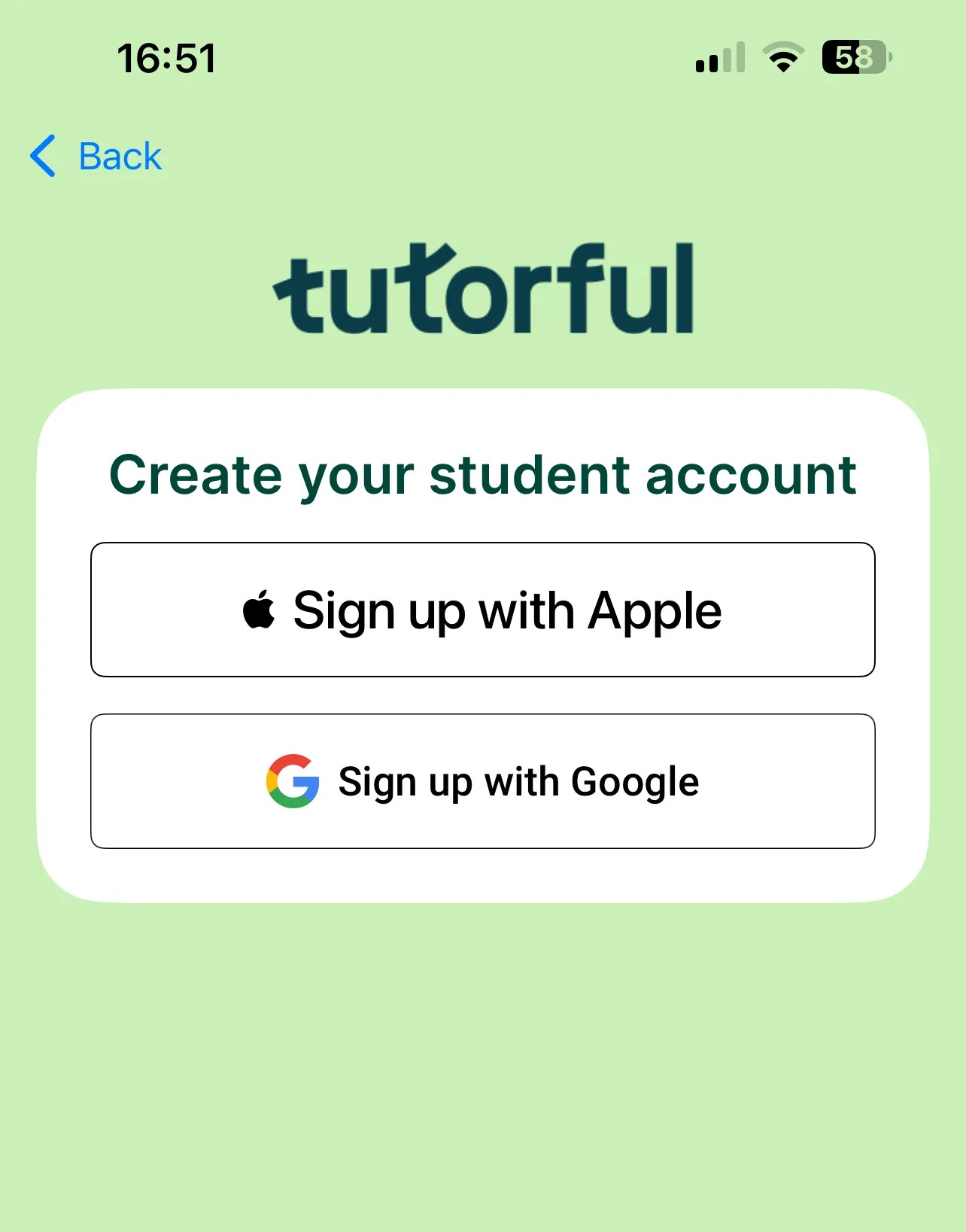
3. Choose the specific account to use (you’ll need to be logged into that Google or Apple account).
4.Your account is created and you’re signed in, ready to continue onboarding.
The Apple “Hide My Email” option
With Apple, you can choose Hide My Email. If you do, we’ll still need a real recovery email to confirm your identity if you contact Customer Success (for GDPR) or recover your account. We recommend sharing your email to avoid the extra step.
Logging in with a social account (existing accounts)
Use the Have an account? Log in option.
- If your Tutorful email matches your social email, we link the accounts and you can use social login going forward.
- If they differ, you’ll see “An account with this email already exists” and can register a new account, reset your password, or log in with your social email.
Was this article helpful?
That’s Great!
Thank you for your feedback
Sorry! We couldn't be helpful
Thank you for your feedback
Feedback sent
We appreciate your effort and will try to fix the article