You can control your camera and microphone in the classroom, switch to a full-screen video feed, and change which camera or microphone is used mid-lesson.
Turning your camera and microphone on or off
Press the relevant button in the bottom right corner of the classroom to turn your camera or microphone on or off.

Making the video full screen
Sometimes you need to see the other person in more detail, for example in music lessons where it helps to see how an instrument is played.
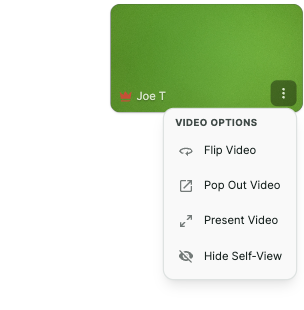
- Click the three dots in the bottom right of the video feed.
- Select Present video.
- To return to the regular view, click the arrow buttons in the top right of the video feed.
Changing your camera or microphone during a lesson
If you have multiple cameras or microphones connected and want to switch:
- Refresh your page. This takes you through the browser test again.
- Choose the camera or microphone you want in the relevant part of the test.
Your previous work in the session will still be there when you re-enter the classroom.
Was this article helpful?
That’s Great!
Thank you for your feedback
Sorry! We couldn't be helpful
Thank you for your feedback
Feedback sent
We appreciate your effort and will try to fix the article