Please note: This guide is for ending all lessons with a student. If you’d like to see how to cancel an individual lesson, we have a separate guide for this here.
How do I end lessons with a student?
If you need to stop tutoring a specific student, you can do this directly from the lesson details page on your dashboard, or by going to your lessons > lesson details.
To end a relationship:
Navigate to your 'Lessons' tab.
Select a lesson with the student you want to stop teaching
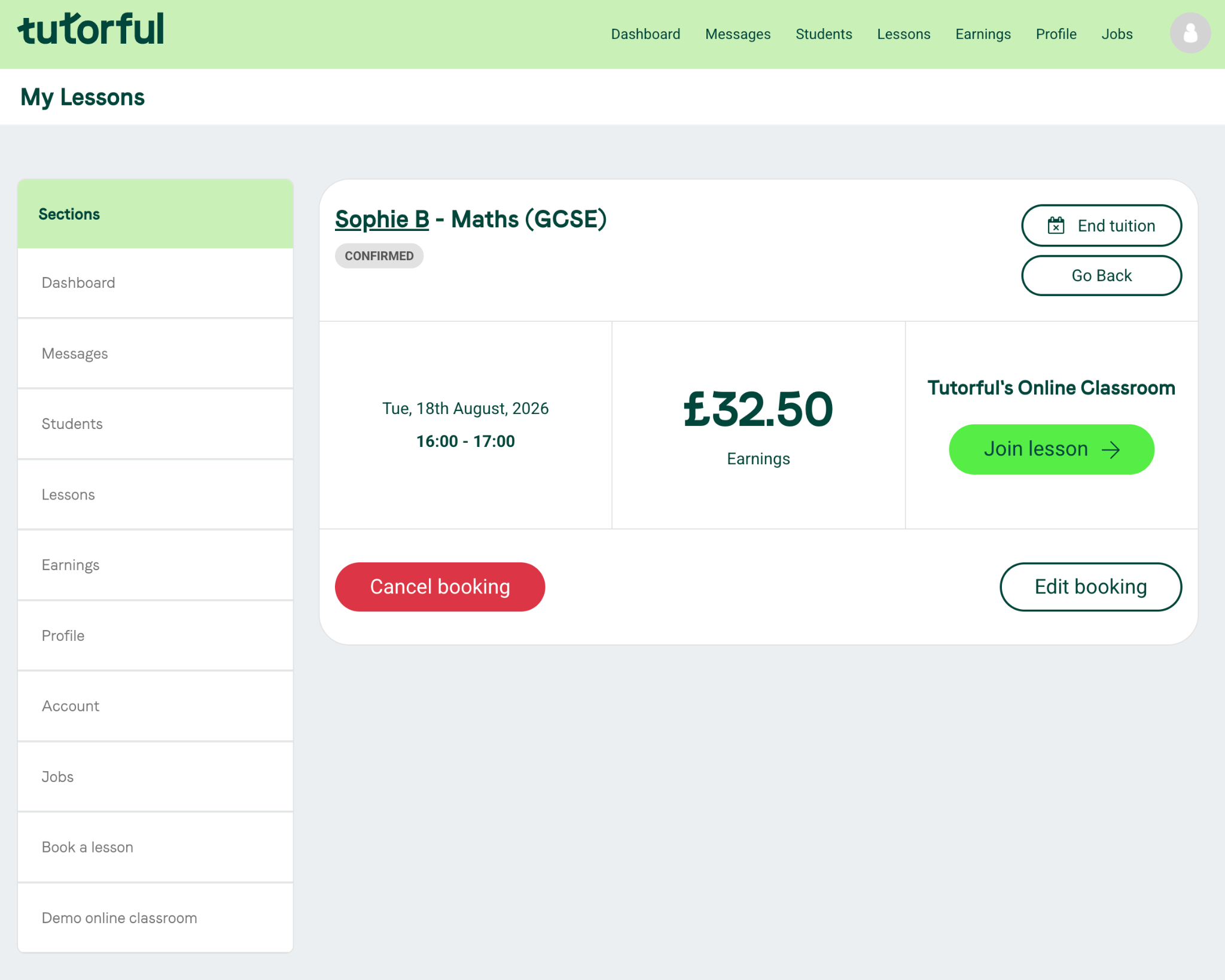
- Click the 'End tuition’ button in the top right of the lesson panel.
You will then be asked to select a reason for the change. Your feedback is crucial as it helps us understand how to improve the platform and provide the right support for both you and the student. Below is a guide to the different options and what they mean for you.
Understanding the 'End Tuition' Options
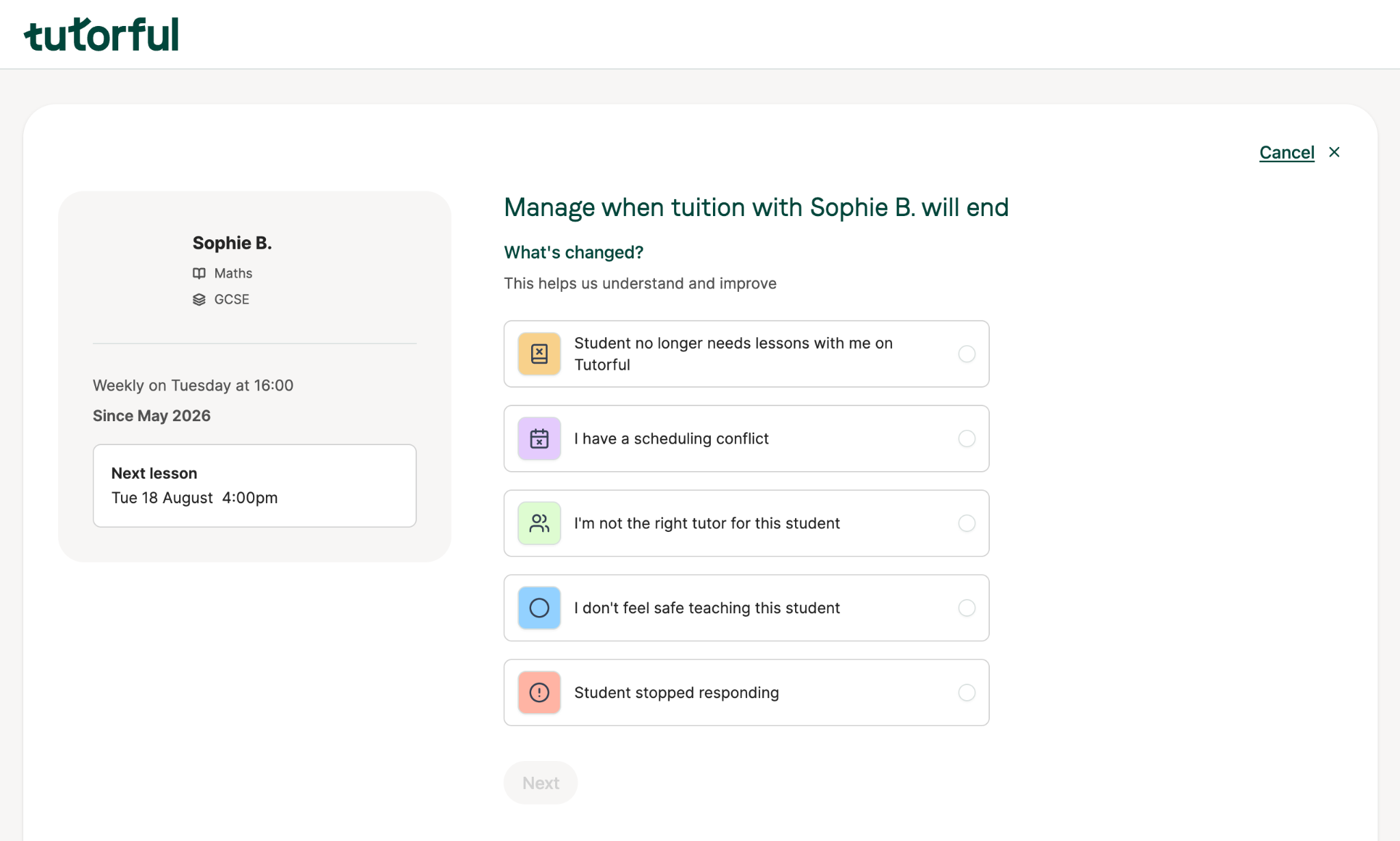
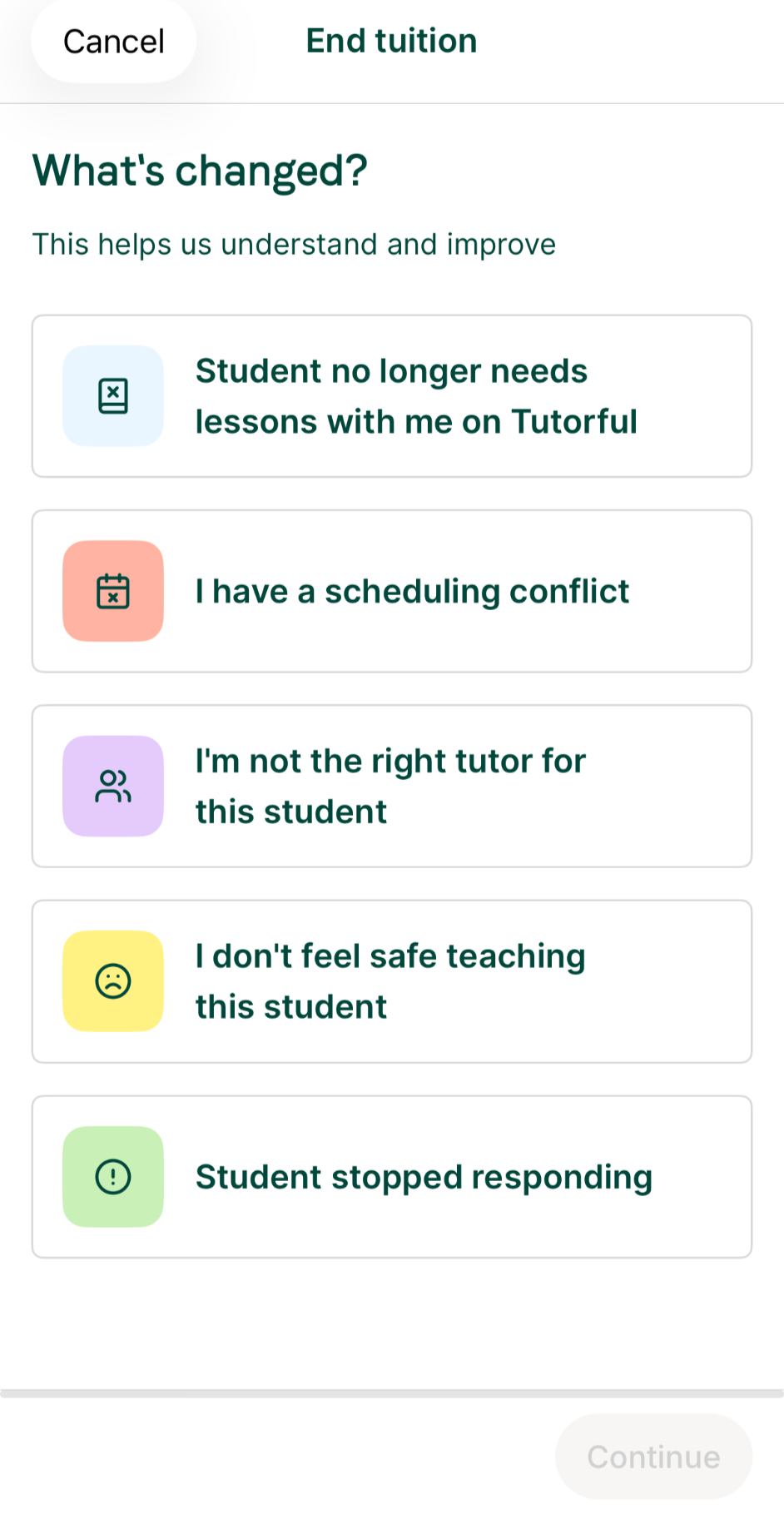
When you choose to end lessons, you will be presented with five core options. Here is a breakdown of when to use each one and what the next steps will be.
1. Student no longer needs lessons with me on Tutorful
Use this when: The student (or their parent) has verbally told you they wish to stop. You can select from the reasons on the subsequent page. When this reason is selected, we will ask the student to confirm before lessons are cancelled.
2. I have a scheduling conflict
Use this when: Your availability has changed (e.g., due to university exams, a new job, or personal commitments) and you can no longer fit the student’s required time slot into your schedule.
3. I'm not the right tutor for this student
Use this when: You feel the student’s academic needs have moved outside your area of expertise, the learning style isn't a good match, or the student requires specialist support that you cannot provide.
4. I don’t feel safe teaching this student
Use this when: You have experienced inappropriate behaviour, harassment, or any situation that makes you feel uncomfortable or unsafe during a lesson or in messages. Your safety is our priority.
What happens next: Selecting this option initiates an immediate, confidential review. A member of our team will review the case and will contact you directly to offer support and gather more details.
5. Student stopped responding
Use this when: The student has not replied to your messages or confirmed upcoming lessons for a significant period, and you wish to free up their regular slot for a new student.
Using the App
The starting flow for ending a relationship when using the app looks slightly different:
Go to your schedule tab, and select a lesson with the student you wish to stop teaching
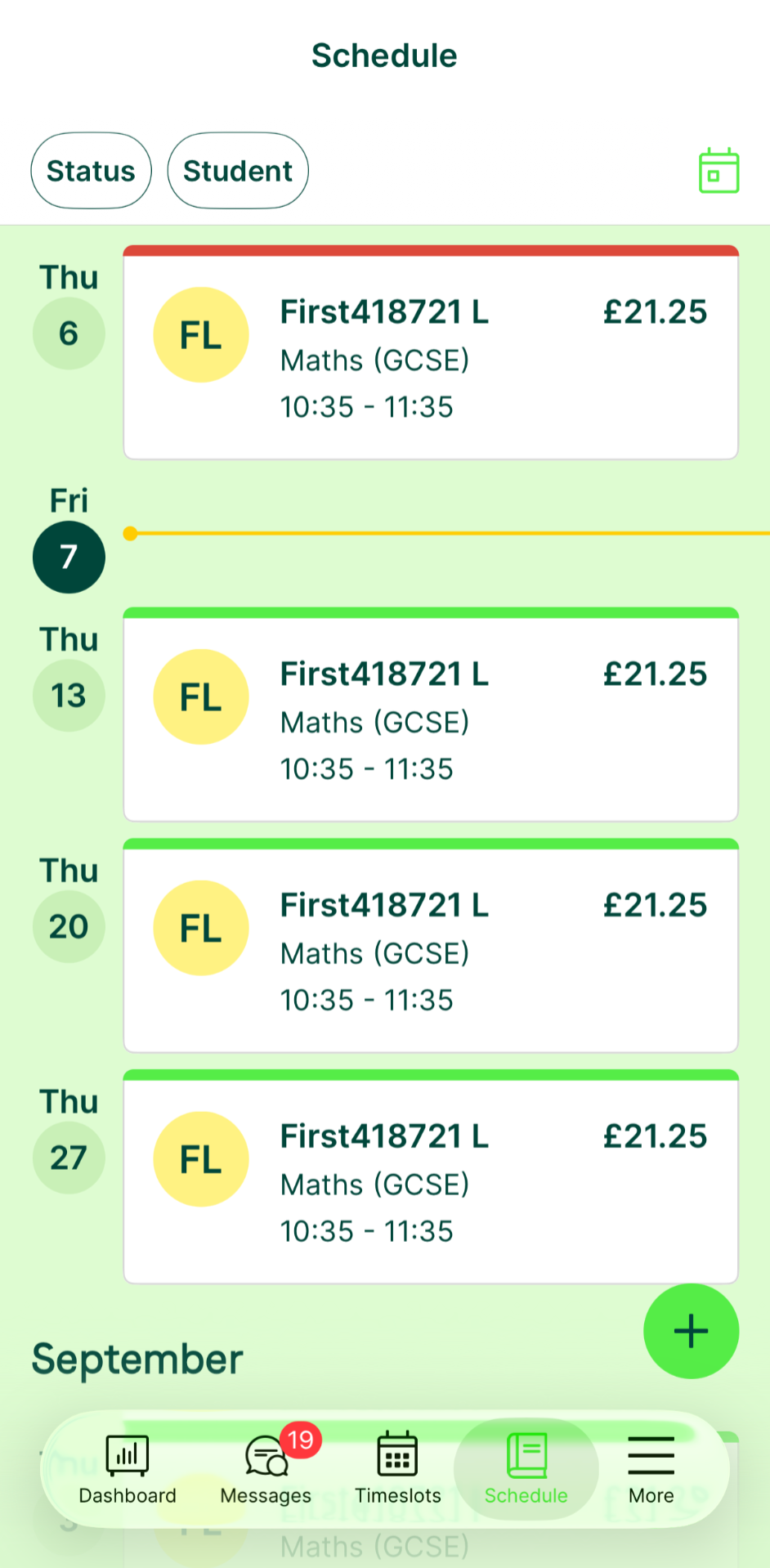
Select ‘Cancel lesson’, and then ‘End Tuition’ on the next page as shown below:
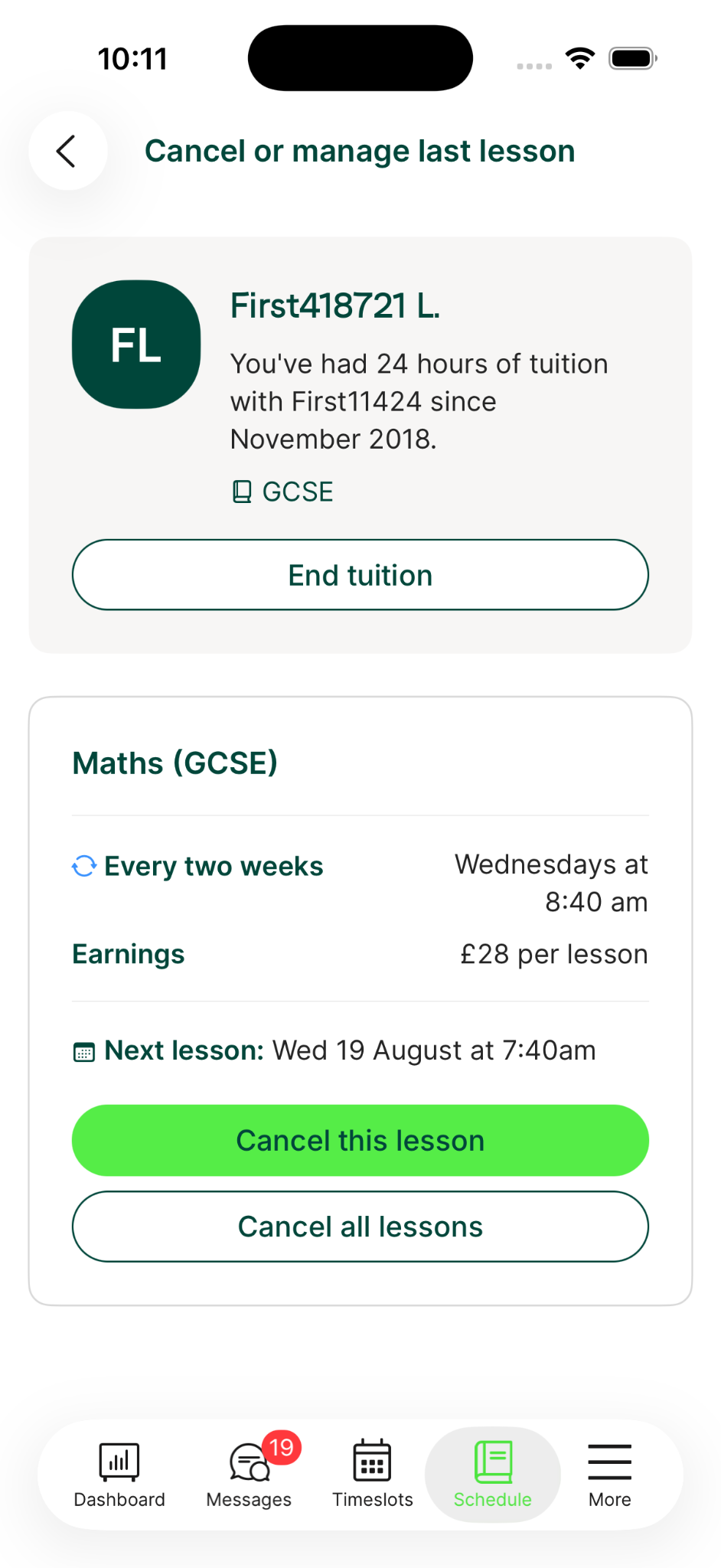
You will then be taken to the ‘End tuition’ flow, and will be asked to select a reason for the change.
Frequently Asked Questions
Does ending a relationship hurt my profile? No. Choosing to end tuition for the right reasons, such as ‘Scheduling Conflict’ or ‘Not the Right Fit’, is a normal part of the process. It will not lower your search ranking. Honest feedback helps us improve the platform for everyone.
What happens to my upcoming lessons? How future lessons are handled depends on the option you select when ending tuition. If you choose to end tuition directly, all future lessons are cancelled immediately upon confirmation, or following your selected final lesson date. If you select that the student no longer needs lessons, we send your message and wait for the student to confirm in their own flow. Other future lessons stay until then. You can choose to cancel only the next lesson while you wait.
I've picked my reason. What's next? Depending on the option you pick, you may be guided through a few additional quick steps, such as sending a final handover message to the student or confirming when your last lesson took place. The system will guide you through this automatically.
Was this article helpful?
That’s Great!
Thank you for your feedback
Sorry! We couldn't be helpful
Thank you for your feedback
Feedback sent
We appreciate your effort and will try to fix the article