The Equation Tool lets you and your student write clear, professional maths and science equations right on the whiteboard, with no extra apps needed. It is built for STEM subjects like maths, physics, and chemistry.
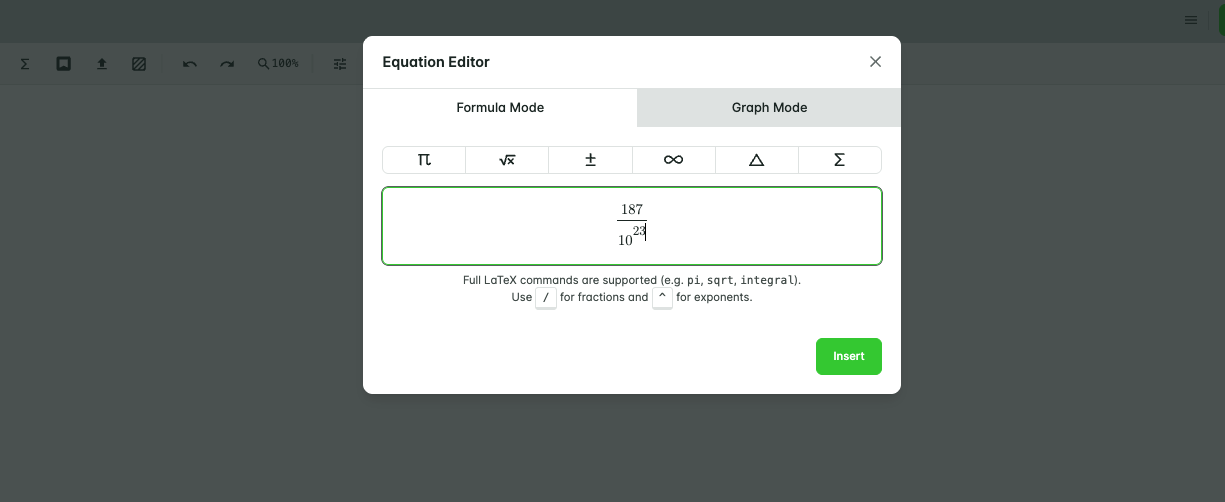
Formula Mode
- Click the Equation tool and select Formula.
- Type your expression. Use / to insert fractions and ^ for exponents.
- To edit an equation later, double-click it.
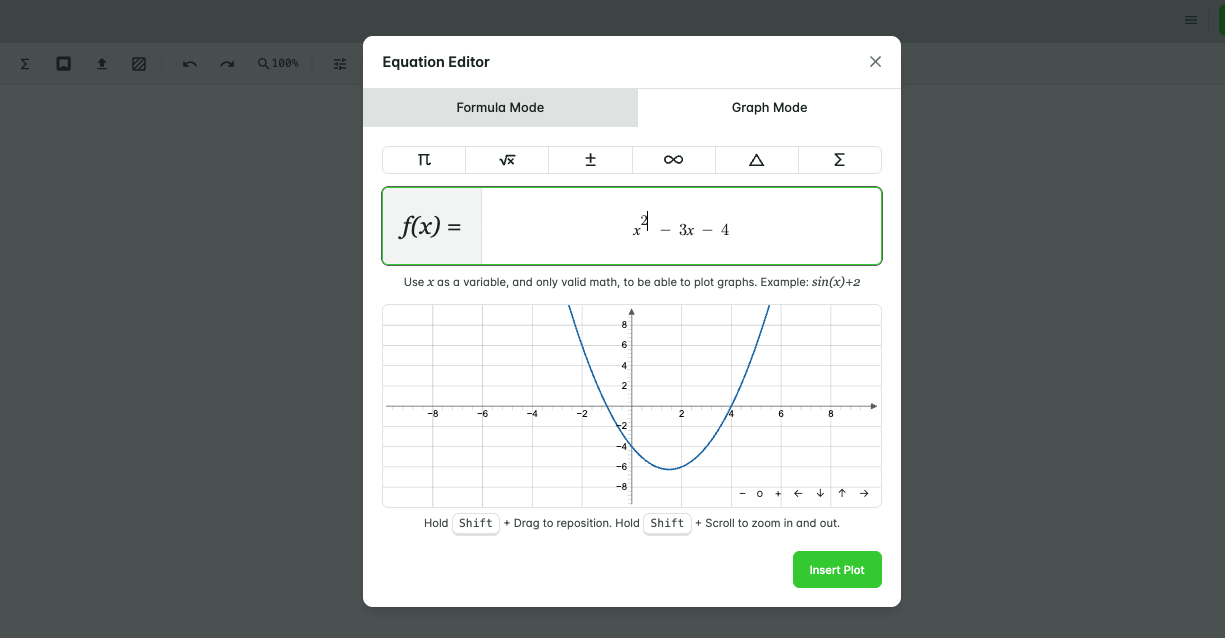
Graph Mode
- Click the Equation tool and select Graph.
- Enter your function.
- Click Insert Plot.
You can move, resize, and annotate the graph just like an image on the board.
What to do next
Try the Equation Tool in your Demo Classroom before going live. To open it, hover over your profile picture in the top right and select Demo Classroom.
Was this article helpful?
That’s Great!
Thank you for your feedback
Sorry! We couldn't be helpful
Thank you for your feedback
Feedback sent
We appreciate your effort and will try to fix the article