Even with browser permissions enabled in Chrome, macOS sometimes overrides them with its own settings. Follow these steps so Lessonspace can access your camera and microphone on your iMac or MacBook.
How to enable camera and microphone access on Mac
- Click the Apple logo in the top left corner, then select System Preferences.
- Click Security & Privacy.
- Click the Privacy tab.
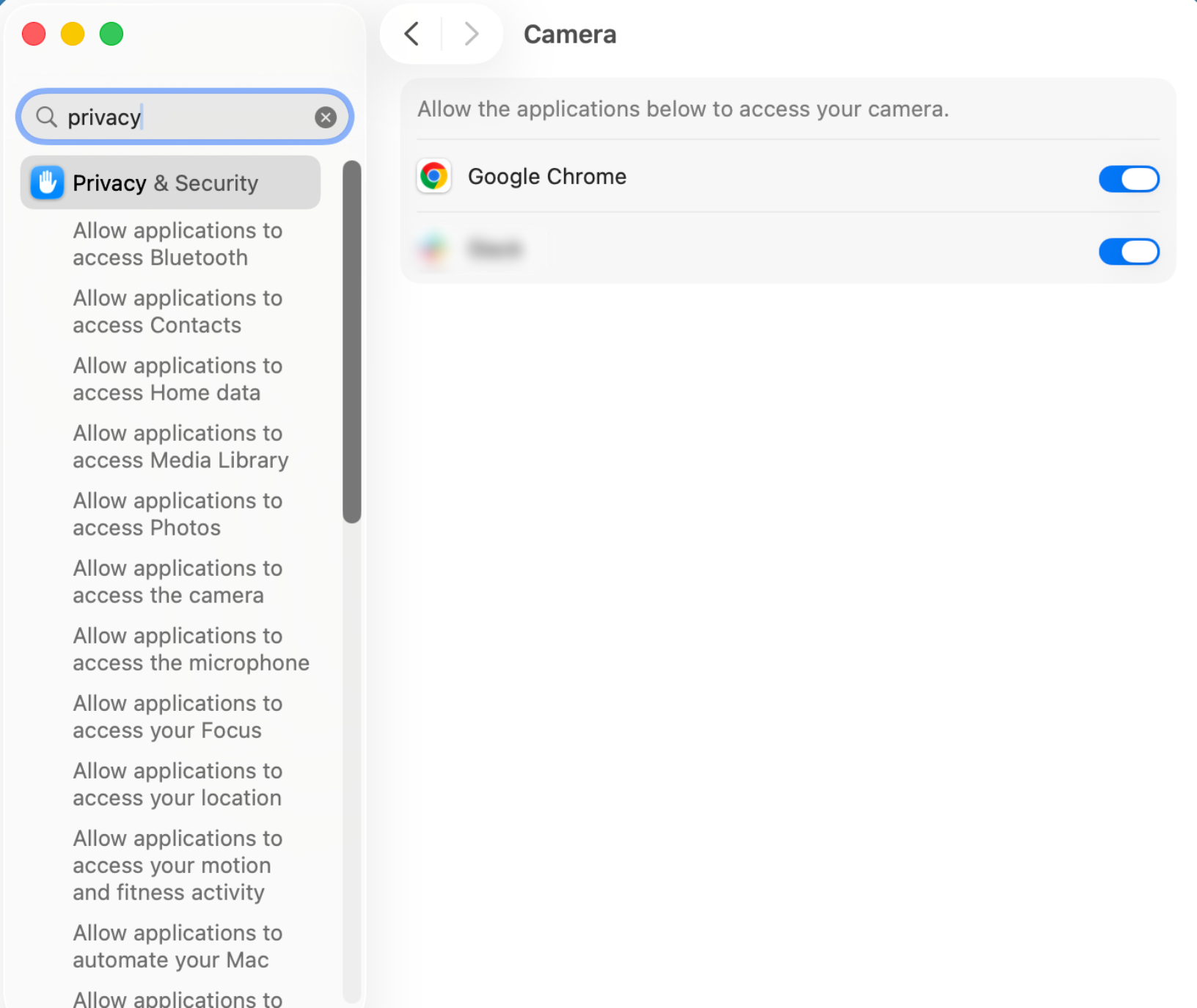
- Select Camera from the options below, then tick the box next to Google Chrome. Do the same under Microphone.
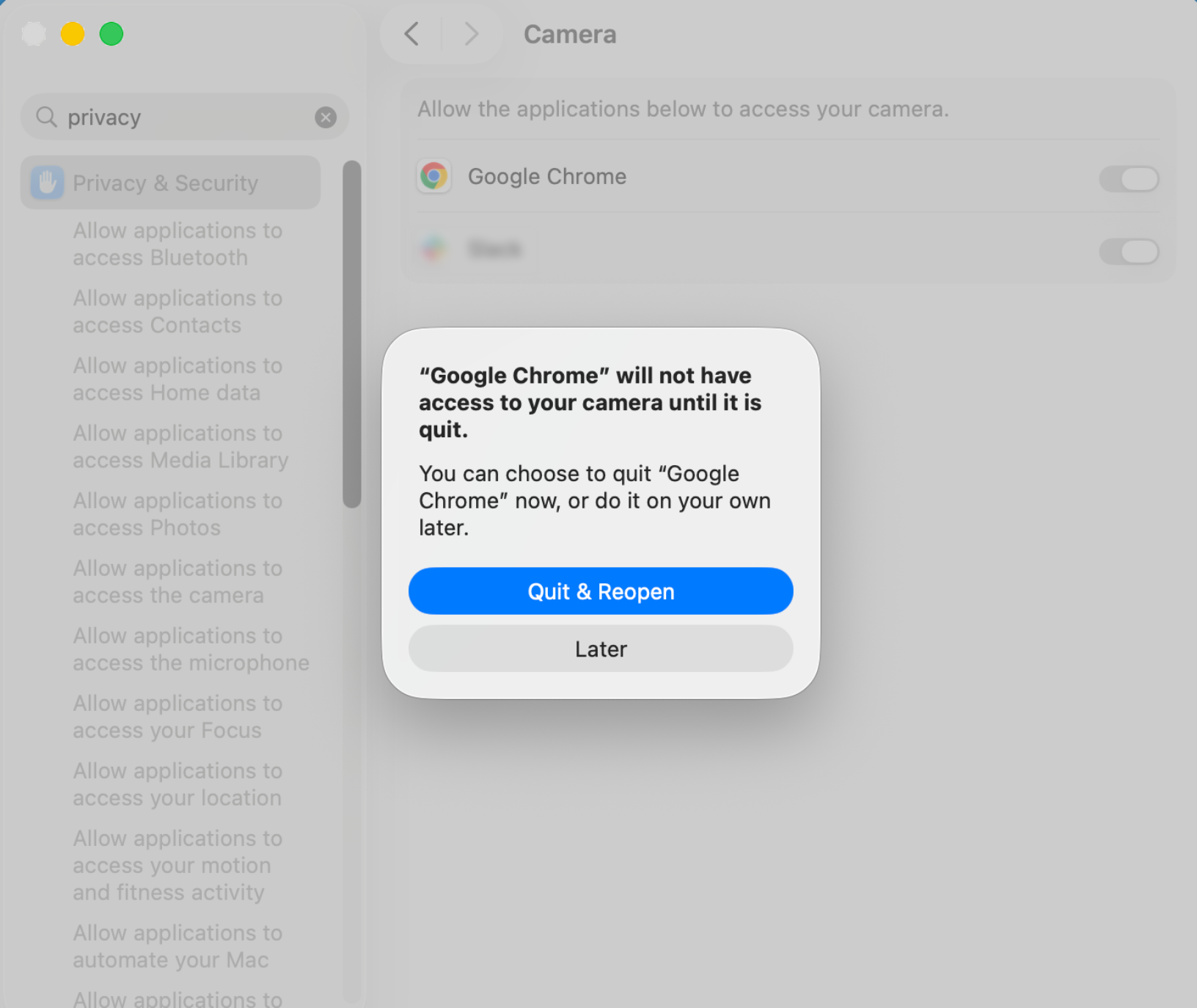
- When the small window pops up, click Quit Now to apply the change.
If you don’t see Camera, Microphone, or Google Chrome
Update macOS to the latest version (Apple icon then About This Mac then Software Update) and update Chrome (three dots at the top right of Chrome then Update Google Chrome).