Your Availability Calendar sits on your dashboard and shows your week at a glance. From it you can manage your Time Slots for new students, add time off, and book, join, edit, or cancel lessons.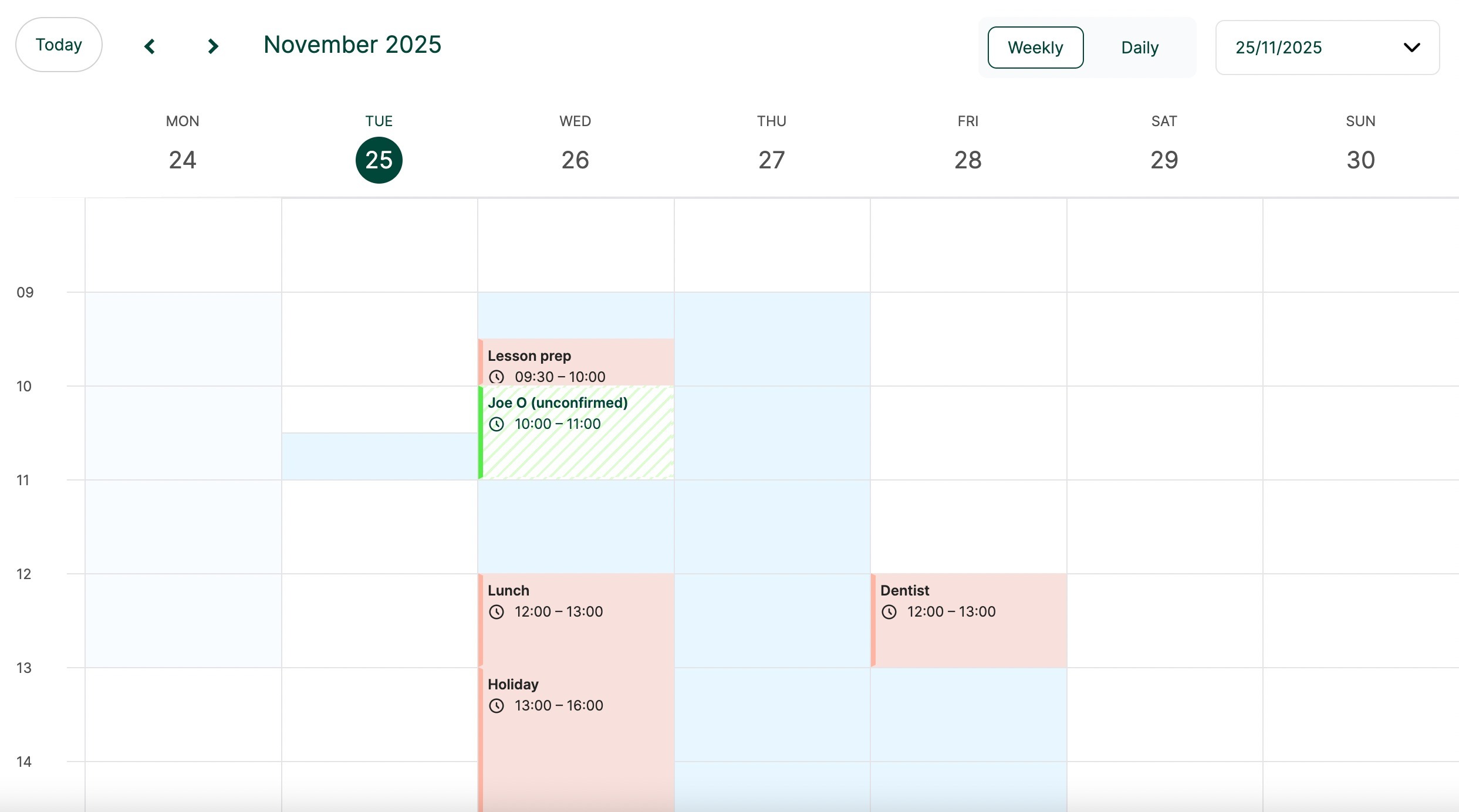
Managing your new students slots
Your Time Slots are the weekly times you commit to teaching new students on a recurring basis. When a student requests one of these slots, they know you can teach it, which removes the back-and-forth.
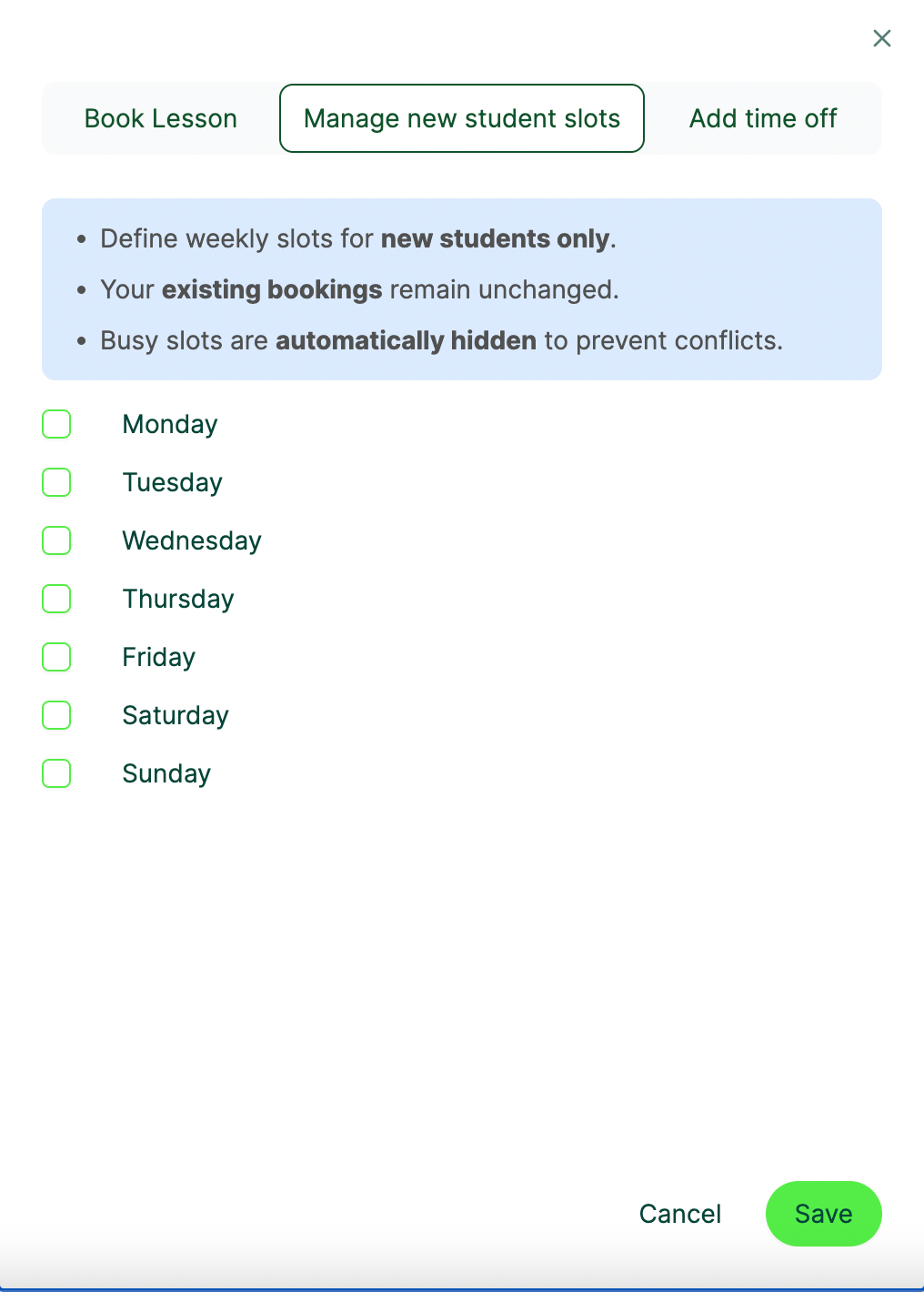
- Click Manage new student slots.

- Select a day, add the times you want to teach, and hit Save.
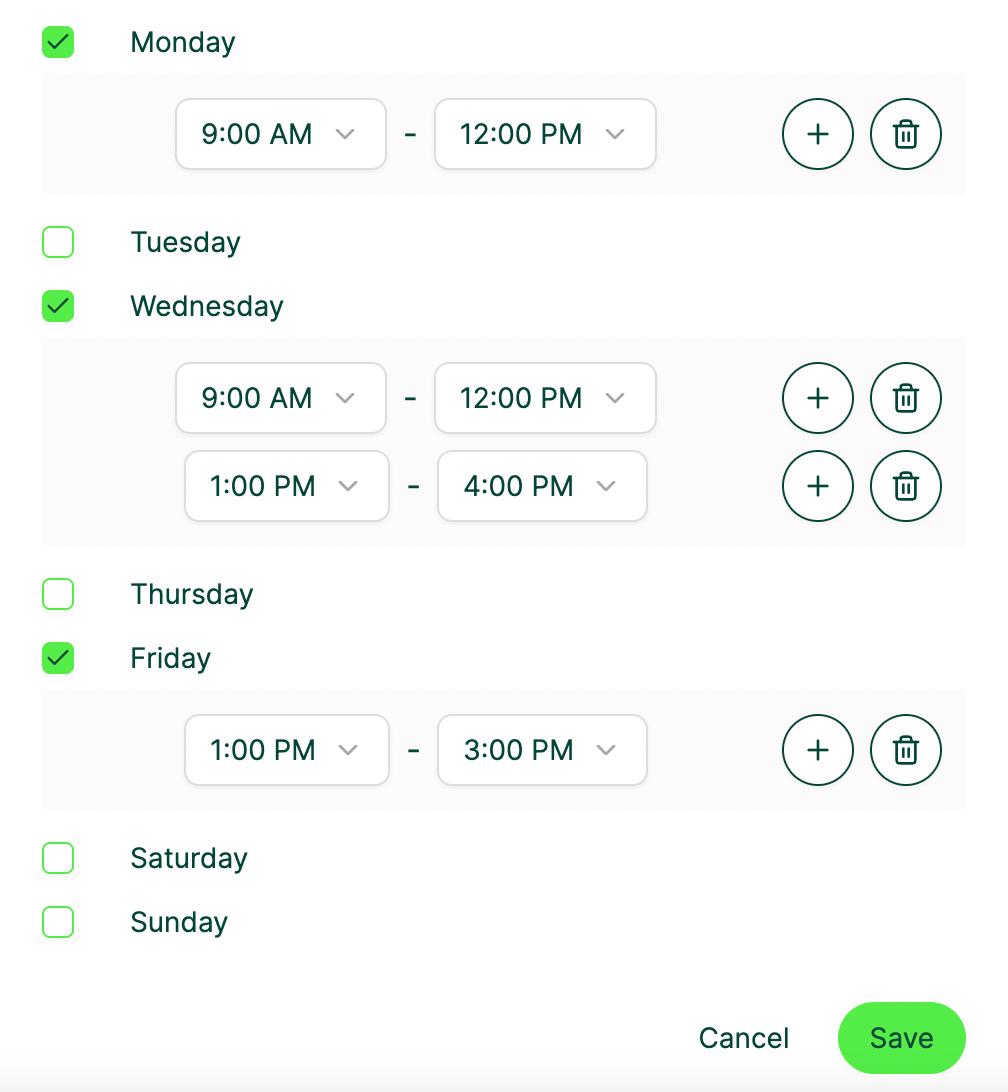
Your open slots appear in light blue, and students can request lessons in them.
Adding time off
- Click Add time off on your dashboard.
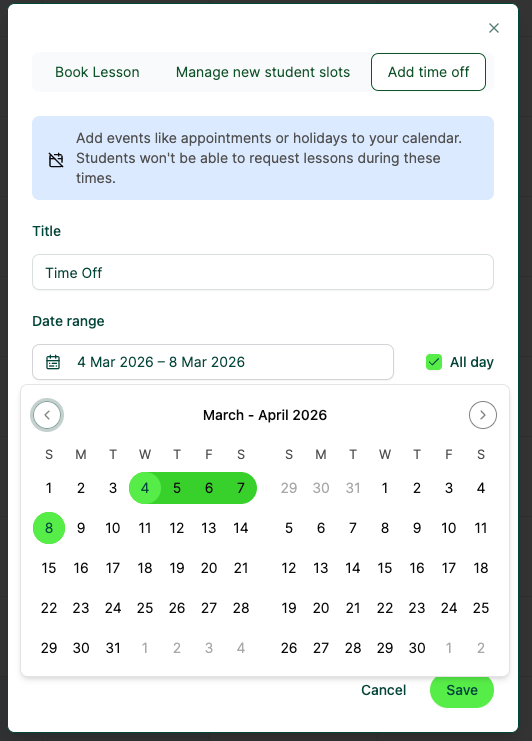
- Give it a title (for example “Dentist” or “Holiday”).
- Enter the date range and time, and hit Save. For a whole day, tick All Day to block every slot that day.
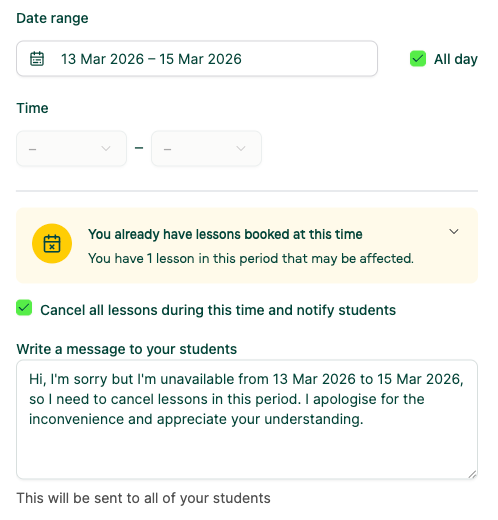
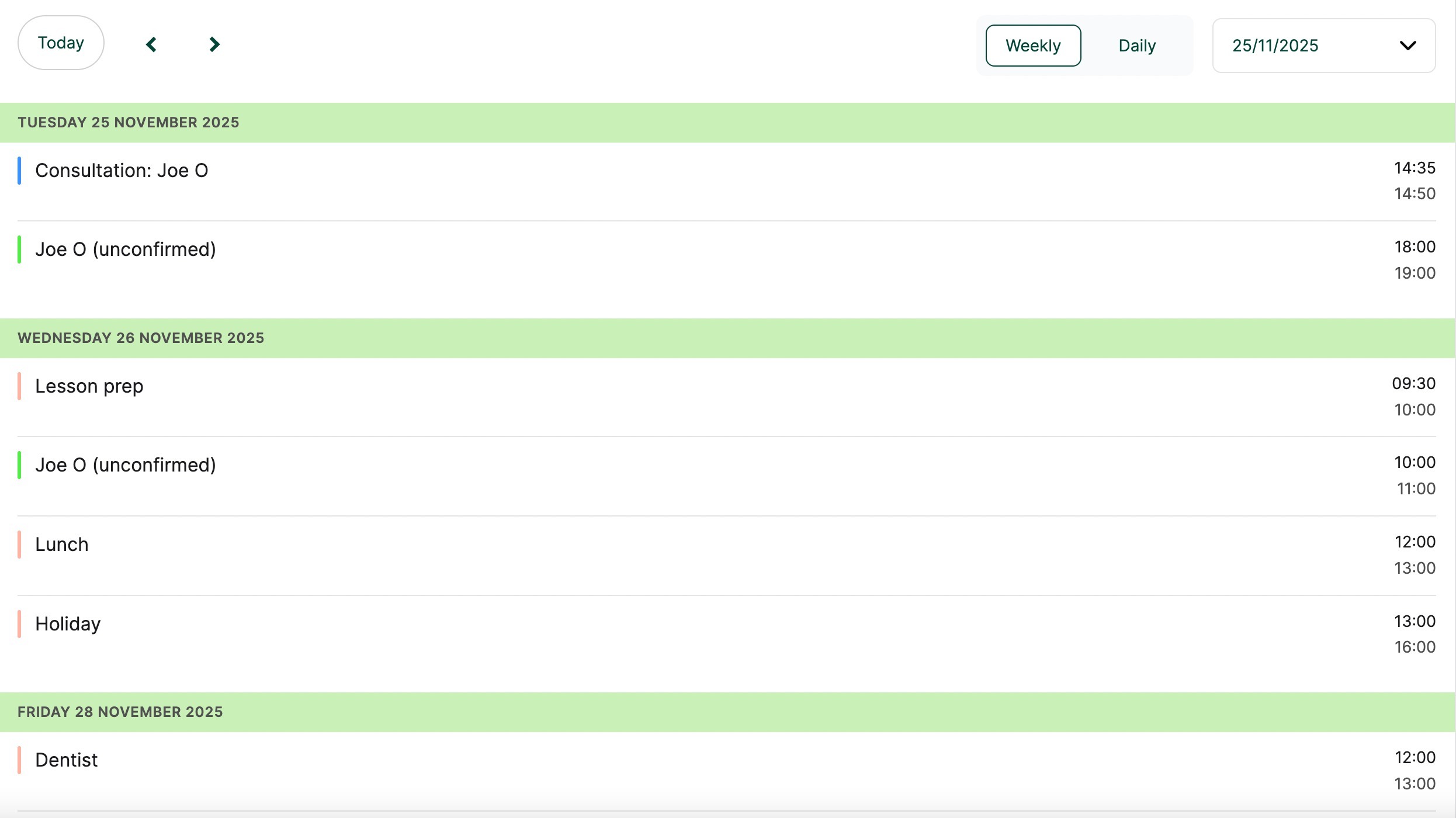
If you have lessons during your time off, you’ll be notified. You can tick Cancel all lessons during this time and add a message that goes to all affected students, so you don’t have to message each one. Time off shows in pink on your calendar; students only see that you’re unavailable, not the details.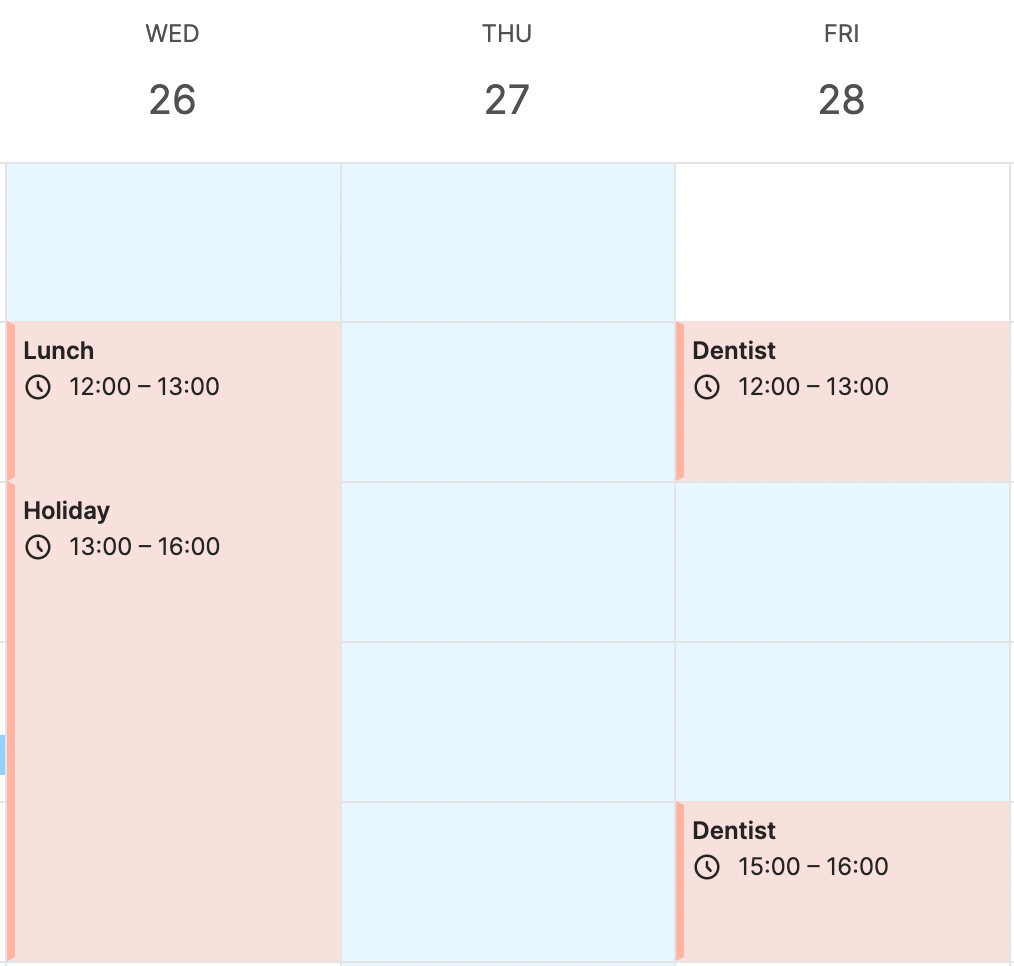
Booking a lesson
Click Book lesson in the top-right corner and complete the booking form as normal.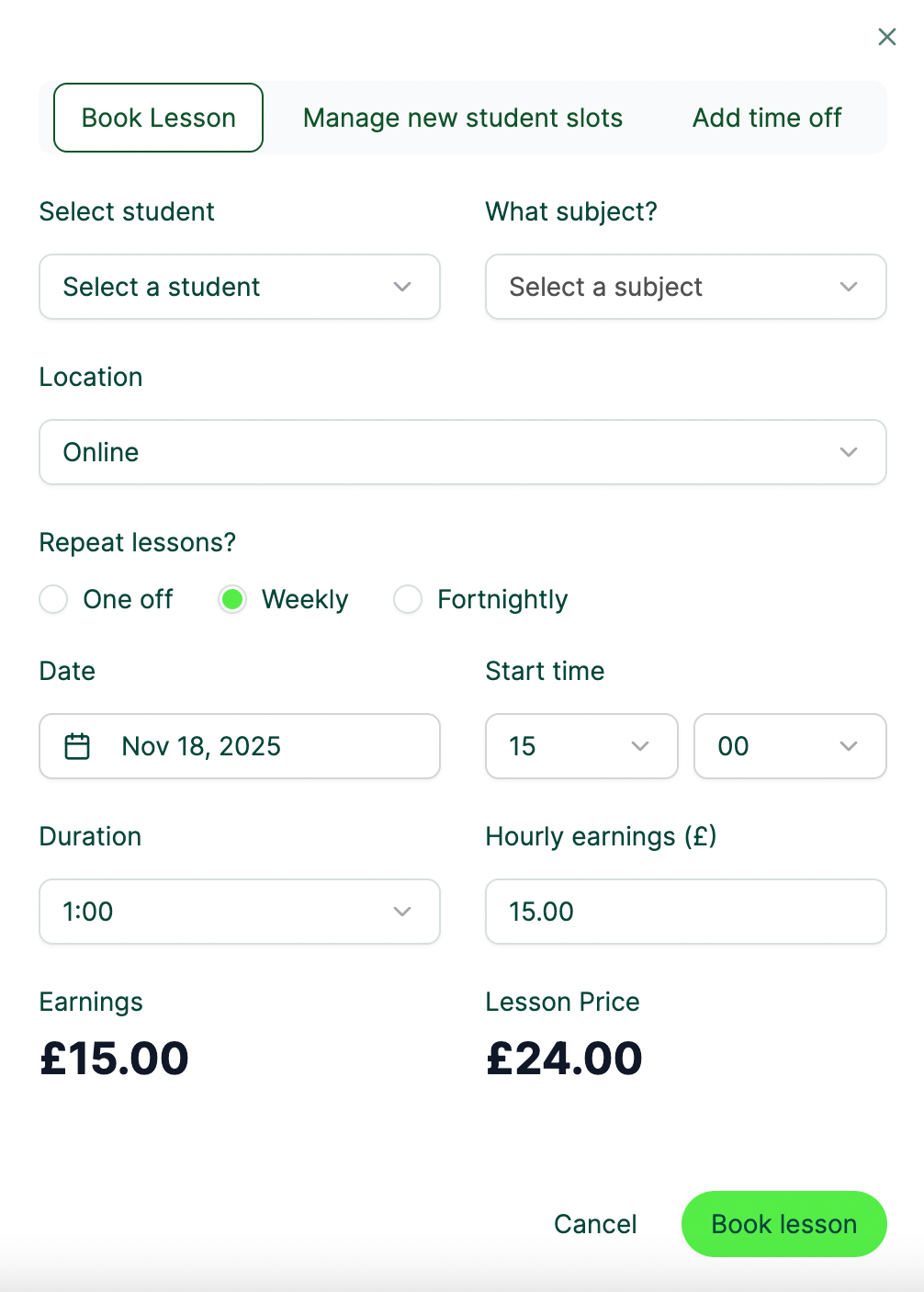
Tip: you can also manage slots, add time off, and book a lesson by clicking directly on the calendar, then toggling between options at the top of the form.
Joining, editing, or cancelling lessons
Click the lesson on the calendar to join, edit, or cancel it.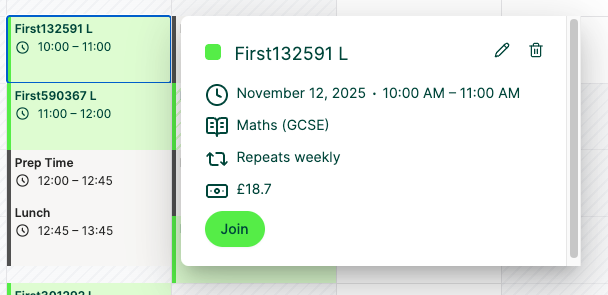
Switching between weekly and daily views
Weekly view is the default. To see all your lessons and booked time off as a list, toggle to daily view. Switch between them at any time using the view button.
Here is also a short video:
Was this article helpful?
That’s Great!
Thank you for your feedback
Sorry! We couldn't be helpful
Thank you for your feedback
Feedback sent
We appreciate your effort and will try to fix the article